With uOS 11.08 support for ADB control of android devices is now included.
Supported Devices
- Amazon FireTV
- Nvidia Shield
- Android/Google Powered TV’s
To enable ADB control, ensure the device you want to control is powered on and awake. You will need to know the device’s IP address.
Step 1 – Enabling Developer Options
To be able to use ADB control you will need to enable Developer Mode.
For Amazon devices, follow the instructions here – Enabling Developer Tools
For other devices -
- Open the menu and go to Device Preferences > About.
- Scroll down until Build is highlighted, then tap ok several times. You will get an onscreen message that developer mode has been enabled.
- Click back, scroll to the bottom of the menu you will see { } Developer Options.
- Open the menu and enable developer options
- Scroll down to Enable network debugging
Step 2 – Installing the ADB pack.
In the example below we will install the pack for FireTV.
2a – Select the pack
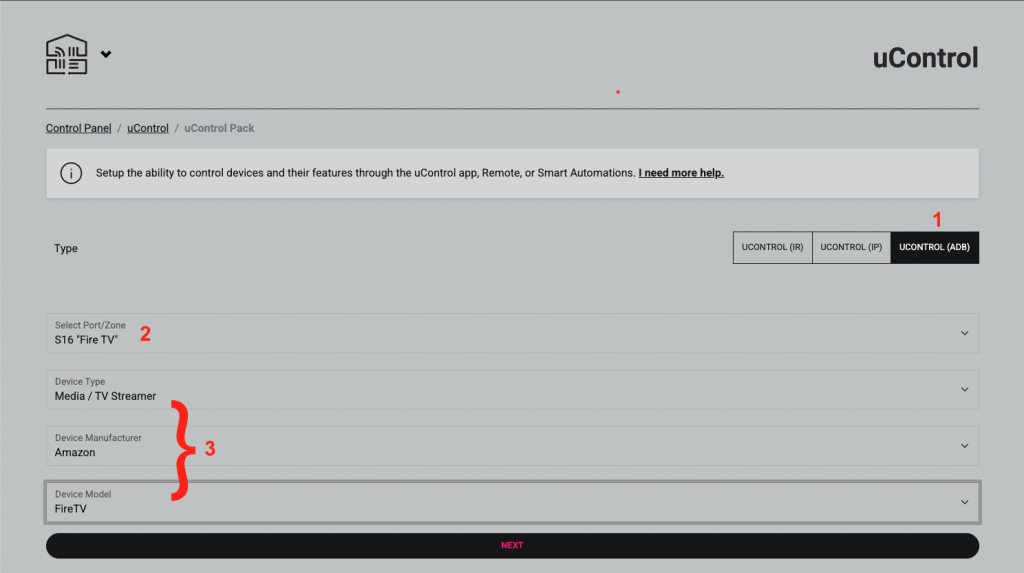
- Select uControl (ADB)
- Select the port or zone when the pack will be installed
- Select the device
2b – Test and confirm installation
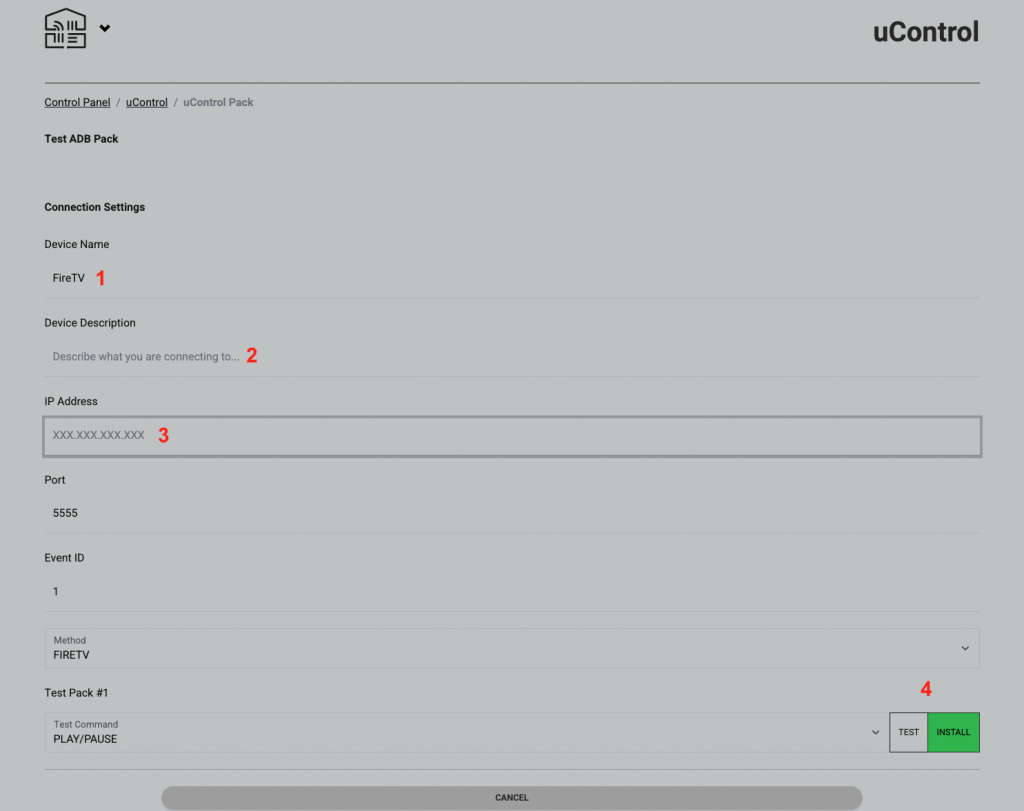
- Use the default name or enter a custom one. This will be displayed on the uControl app and remote
- Describe what you are connecting to, this field is not compulsary to install the pack
- Enter the IP address in the fireTV in the format
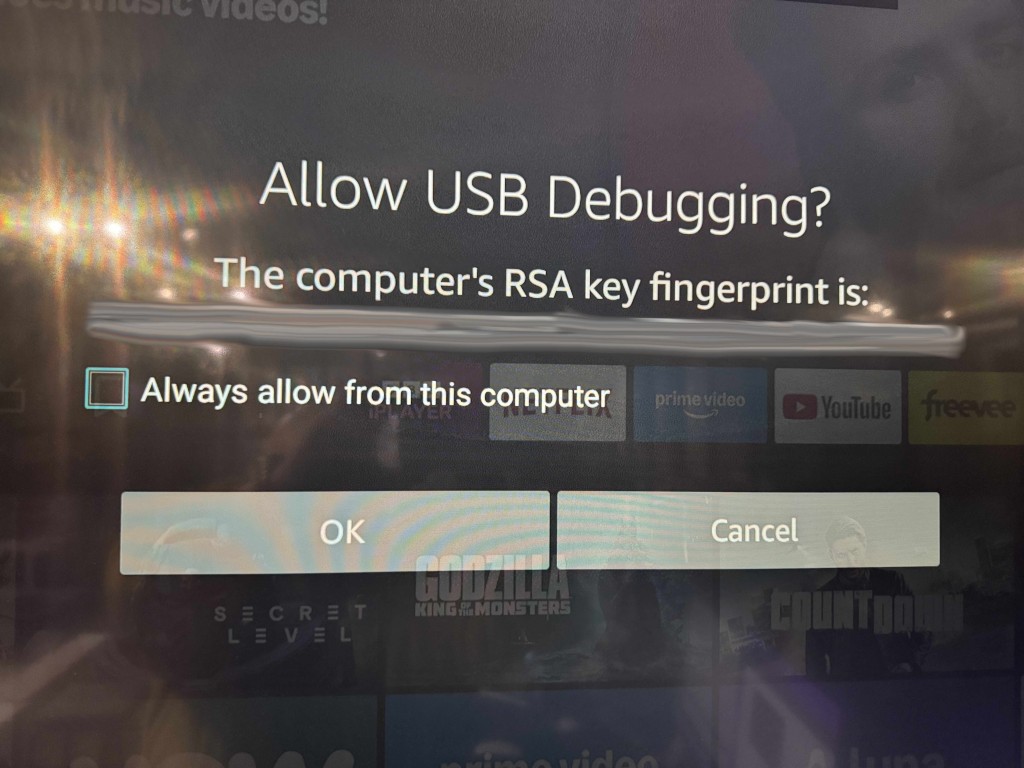
xxx.xxx.xxx.xxxFor example, 192.168.0.25. - IMPORTANT – the first time to connect to the device you will get an onscreen message like the one shown below. Please select always allow then click ok.
- Once tested, click install and the pack is ready to use